

How to Uninstall Microsoft Office Completely
Updated: Jul 25
Every time the user starts a product from the Microsoft Office suite on a Windows device, it asks to sign in to the Microsoft 365 account to license the Office suite or enter a key. However, this company bought Microsoft Office LTSC. So, they should not sign in to license the product and can use a product key license instead. But it’s not working. In this article, you will learn how to uninstall Microsoft Office from Windows completely.
Introduction
For every Office application that we start on the Windows client, a window appears to license the Office Suite. However, entering the key doesn’t work, and we don’t want to sign in with an account to license it because we don’t have a Microsoft license attached to the user.
The problem is that reinstalling Microsoft Office didn’t help, and it keeps giving this “Sign in to get started” window.

Let’s look at how to completely uninstall Microsoft Office or how to remove all the licenses to prevent issues with licensing when entering the product key.
Office Scrubber tool
The Office Scrubber is an automated script to uninstall, remove, and scrub Microsoft Office (MSI or Click-to-Run) and works for the versions below:
All Office
Office C2R (365, LTSC, 2024, 2021, 2019, 2016, 2013)
Office 2016 (MSI)
Office 2013 (MSI)
Office 2010 (MSI or C2R)
Office 2007
Office 2003
Office UWP (Office Store Apps on Windows 11/10)
The Office Scrubber tool code is taken from the Microsoft Support and Recovery Assistent (SARA), which no longer works and is now built into the Get Help app.

Download Office Scrubber tool
To download the Office Scrubber tool on the system, follow these steps:
Download the Office Scrubber tool that contains all the files in a ZIP file
Extract the ZIP files to C:\temp so it looks like the image below

Run Office Scrubber tool
To uninstall the Microsoft Office version on the system using the Office Scrubber, follow the steps below:
Right-click on OfficeScrubber.cmd and run it as administrator
The Office Scrubber tool detects and displays the installed Office version on your system. You can identify it using the {*} wildcard at the end. For instance, in this case, Office C2R is installed.
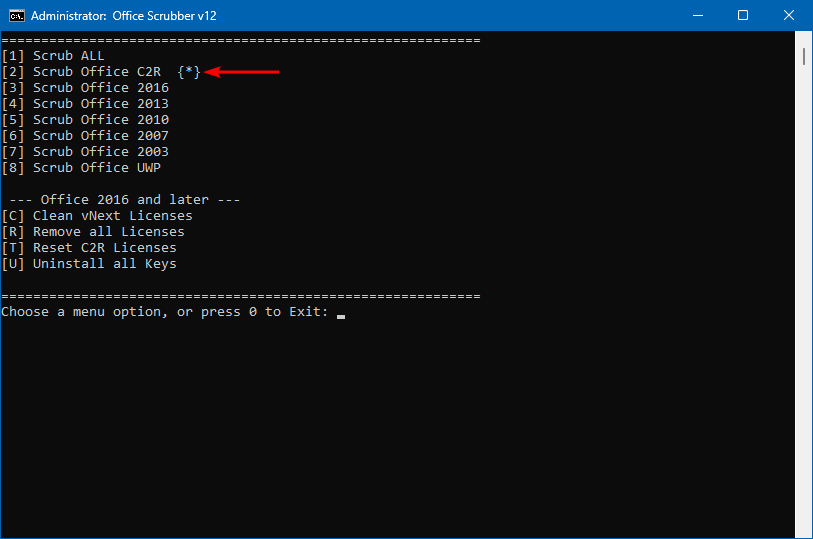
Choose the number to uninstall Office (in this example, number 2)
Microsoft Office and all the licenses will be uninstalled from the machine

Restart the system
Verify your work
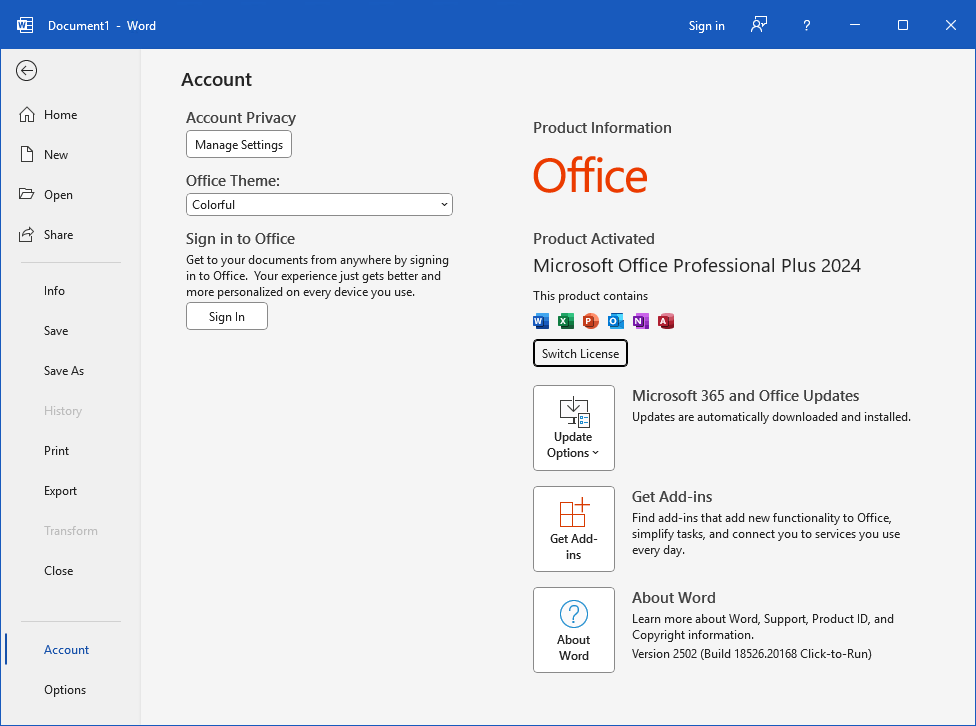
Install a fresh copy of Microsoft Office on the system and activate it without worrying about any leftovers that can cause issues.
That’s it!

Comments